Configure your network.
Bring the back of an NFC-enabled Android phone to the new tag and open the setup in Chrome. Sign in to LINQS, enter the Wi-Fi details or import a Wi-Fi QR, then tap again to write.
A little detail. A better stay.
A tap-ready Wi-Fi sticker for homestays and guest spaces. Put it beside the keys. Guests tap for network details and connection steps, instead of messaging you for the password.
From ₹100Black or white. Single tags or packs.
Set up with Chrome on an NFC-enabled Android phone.
Guest connection steps vary by phone.

A place for the keys.
And the Wi-Fi.
01 / THE GUEST EXPERIENCE
Watch the product video“What's the Wi-Fi?” gets a place of its own. Guests find the tag, tap their phone, and follow the connection options.
Tap the tag. Bring the back of the phone close to the sticker. NFC reader position varies by phone.
Choose the connection option. Supported phones may offer native Wi-Fi joining. Otherwise, the LINQS guest page has your details.
Follow your phone's prompt. Copy the password and open Wi-Fi settings if needed.
NFC must be available and switched on. The web fallback needs an internet connection.
Tap with a compatible iPhone. iPhone XS/XR and later support background NFC reading.
Open the LINQS guest page. See the network details and copy the password, or choose the Wi-Fi profile option.
Follow the on-screen instructions. Joining takes additional steps on iPhone.
Internet is needed to load the guest page. Keep a printed Wi-Fi QR or password as a fallback for guests without mobile data.
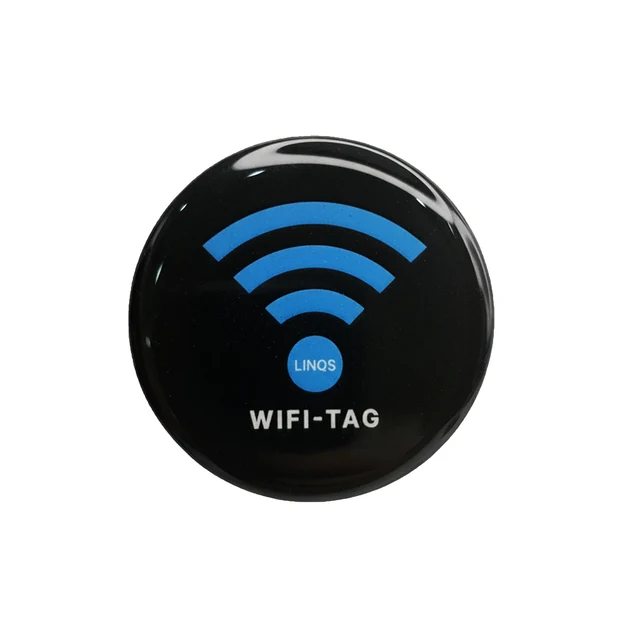
Welcome.
Your Wi-Fi
is here.
Tap with the back of the phone.
Then follow the connection options on screen.
02 / MAKE IT AT HOME IN YOUR SPACE
START WITH THE MOMENT THAT REPEATS.For the people who care about the small things: a smooth arrival, an uncluttered counter, a visitor who can help themselves.
FOR HOSTS & PROPERTY MANAGERS
Place a tag by the keys or on the bedside desk. Give arriving guests a clear place to find the Wi-Fi details, even when you're answering from somewhere else.
Start with one propertyFOR OWNER-RUN CAFÉS
Put a tag where guests order or settle in. It gives laptop regulars a self-serve starting point, while your team gets on with serving them.
Choose a few placementsFOR SMALL TEAMS & SHARED SPACES
Give visitors a designated Wi-Fi point at reception or in your meeting room. A separate guest network keeps the offer clear and manageable.
Plan your guest spacesFOR PEOPLE WHO LOVE HAVING PEOPLE OVER
Put a tag on a wooden shelf or by the guest-room desk. Friends have a place to tap without asking you to find the password again.
Choose a tag for home03 / MORE THAN A WI-FI NOTE
The useful part isn't just the NFC chip. It's the guided setup and the connection options that sit behind it.
Sign in to LINQS, enter your network details or import a Wi-Fi QR, and write the tag with Chrome on Android.
A compact, glossy sticker becomes a visible point for Wi-Fi details. No battery to charge. No LINQS app for guests.
Change the LINQS configuration and rewrite the NFC details. Keep the tag unlocked if you want to update it later.
A printed Wi-Fi QR is a good fallback. WiFiTag adds a tap interaction and the LINQS setup flow. Keep the QR or password available for phones without NFC or mobile data.
04 / YOUR PART, BEFORE THE FIRST GUEST
CONFIGURE. PLACE. TEST.Bring the back of an NFC-enabled Android phone to the new tag and open the setup in Chrome. Sign in to LINQS, enter the Wi-Fi details or import a Wi-Fi QR, then tap again to write.
Clean a smooth glass, wood or plastic surface. Stick the tag somewhere guests can see and reach. Keep it off metal.
Test with an Android phone and a compatible iPhone. Keep a printed QR or password nearby for guests who need another way in.
Before buying: you'll need access to Chrome on an NFC-enabled Android phone for setup and rewriting. Setup and the guest web page need internet.
Compatibility answers05 / CHOOSE YOUR WELCOME
REAL TAGS. BOTH COLOURS.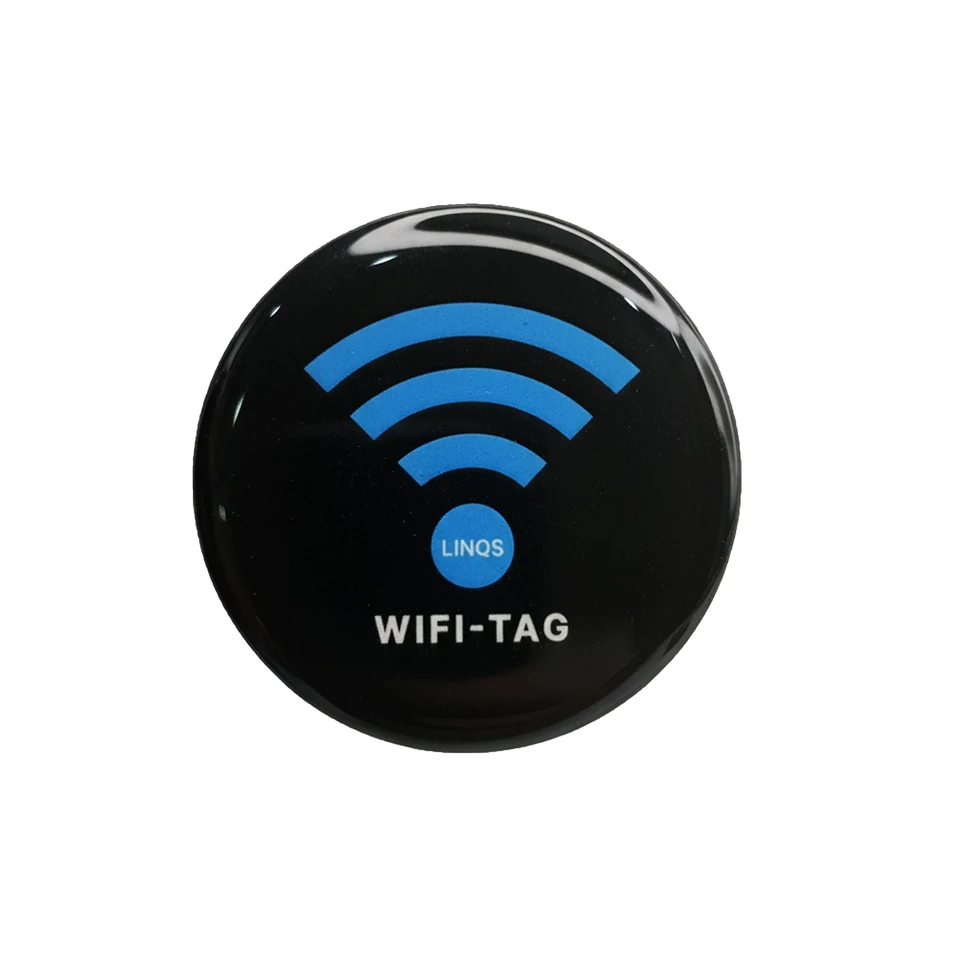
50 mm · Epoxy-domed NFC sticker
₹100₹100 per tag
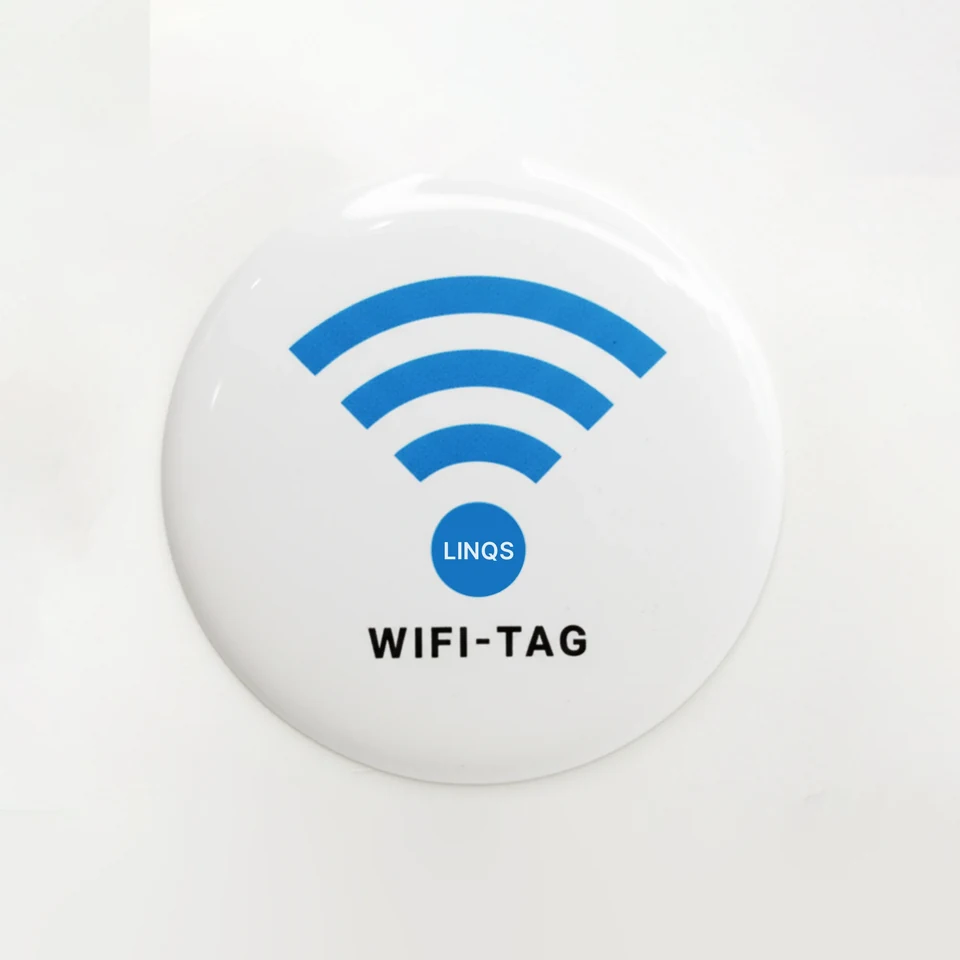
50 mm · Epoxy-domed NFC sticker
₹100₹100 per tag
Prices include GST. Shipping and current availability are confirmed on the LINQS store. Your chosen pack carries through to the product page.
Need help choosing for several properties? Talk to LINQS
Setup requirement: Chrome on an NFC-enabled Android phone. These standard stickers are for non-metal surfaces.
06 / STRAIGHT ANSWERS
Small details matter here, too.
Ask the LINQS teamChrome on an NFC-enabled Android phone, an internet connection and your Wi-Fi details. Tap the tag, sign in to LINQS, enter the details or import an existing Wi-Fi QR, then tap again to write. An iPhone cannot perform the writing step in this LINQS browser setup.
Compatible iPhones open the LINQS guest page. iPhone XS/XR and later support background NFC taps; older models have different reading requirements. The page offers network details, password copy, a Wi-Fi profile download and a QR option. It needs internet to load. Joining takes additional steps.
Some supported Android phones may use the NFC Wi-Fi record directly. The web fallback and the iPhone guest page need internet. Keep a printed Wi-Fi QR or password available for guests without mobile data. Setup also requires internet.
Yes. The guest page can display and copy it. WiFiTag makes sharing more convenient; it doesn't hide the credentials from guests. Use a separate guest network if you don't want to share your main network.
Yes, if the tag remains rewritable. Update the LINQS configuration and rewrite the NFC details using Android. Test again afterwards. Don't permanently lock the tag if you want to change it later.
No. These standard stickers are for non-metal surfaces such as glass, smooth wood and plastic. Direct metal placement can interfere with NFC reading. Choose a wooden menu stand or welcome folder instead.
It shares network details; it doesn't provide Wi-Fi, extend signal or replace your router. Start with an ordinary password-protected guest network. Captive portals, corporate authentication and other login systems need a separate compatibility check.
A physical LINQS WiFi NFC Sticker M1 in black or white, with access to the LINQS configuration flow. It has no battery to replace and needs no LINQS guest app. See the store for current commercial terms, shipping, availability and returns.
READY FOR YOUR NEXT GUEST
The keys. The welcome note.
And a place to tap for Wi-Fi.